 IMAGE
IMAGECONCEPT / 01
Iridescent product
Interface preview
Describe an idea and prepare a high-fidelity image with controlled composition, light, typography, and style.
Interface preview only. No files are uploaded and no credits are used.
IMAGEInterface preview
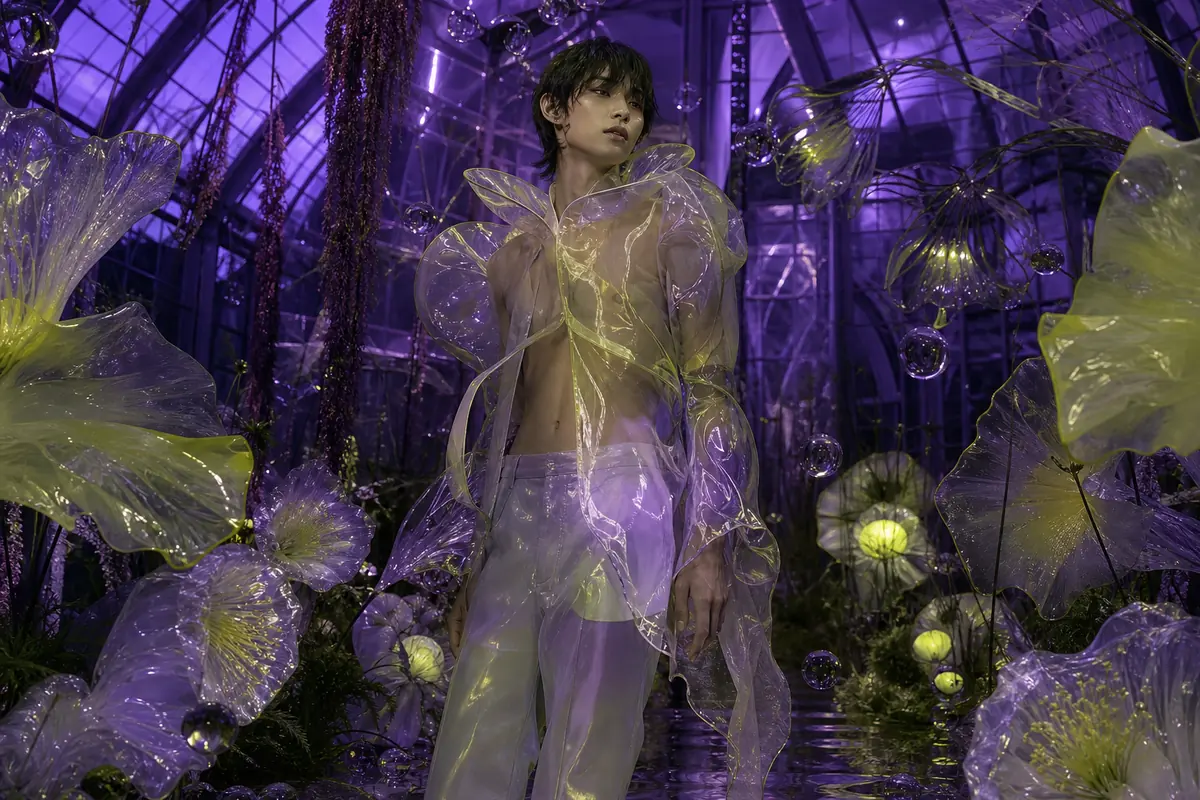 IMAGE
IMAGEInterface preview
 IMAGE
IMAGEInterface preview
 IMAGE
IMAGEInterface preview
Transform a source image while preserving the identity, composition, product detail, or structure that matters to the final result.
Upload the clearest version of the subject or composition and remove irrelevant borders, labels, and distractions.
State whether identity, pose, geometry, layout, product shape, or typography should be preserved.
Direct the new setting, light, material, palette, viewpoint, or style without contradicting the preserved elements.
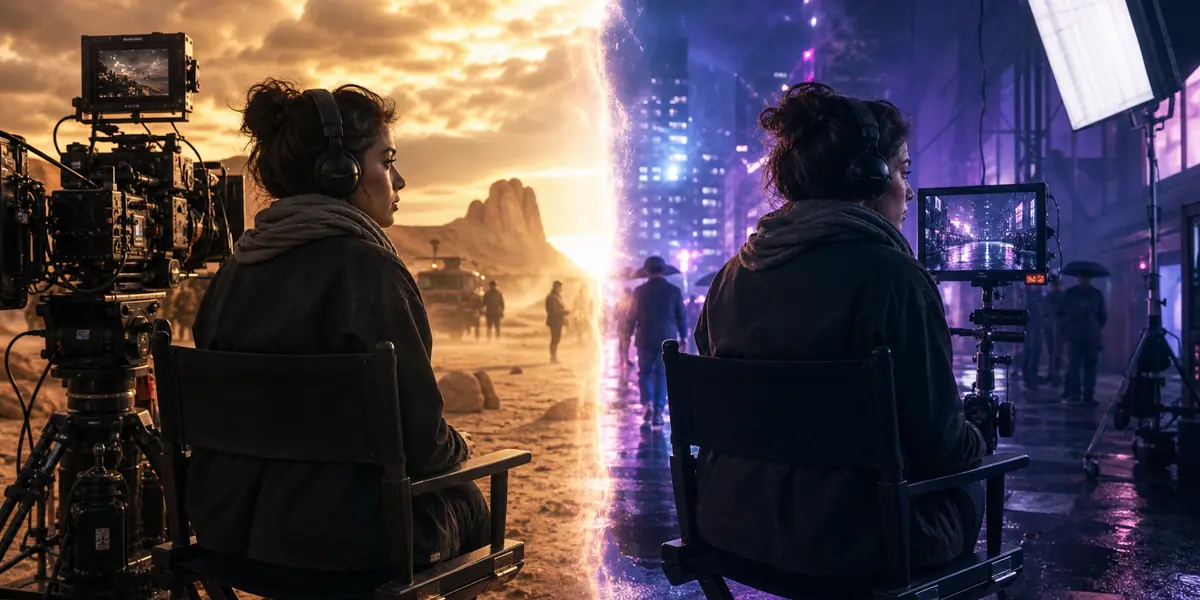
Review identity, structure, proportions, text, and unintended changes at both display size and close zoom.
WHEN TO USE ITExplore new backgrounds, materials, lighting treatments, and campaign directions around an approved product image.
Change wardrobe, atmosphere, location, or medium while keeping recognizable identity and facial structure.
Reframe an existing visual for another format, channel, season, or art direction.
Image to image begins with evidence already present in a source file. The central task is not describing the entire picture again; it is separating protected visual facts from the requested transformation so the output can be compared with a stable reference.
Use the highest-quality source available and inspect focus, compression, crop, reflections, obscured edges, and embedded text. A transformation cannot reliably protect details that are already unreadable. Remove accidental borders or interface elements and confirm that you have permission to use recognizable people, products, and artwork.
Write a short list of non-negotiable properties: face identity, pose, silhouette, product proportions, logo position, camera angle, layout, or dominant color. Then list the variables allowed to change. This ledger prevents broad instructions such as “make it futuristic” from silently altering the feature the project was meant to preserve.
State the new environment, lighting, surface treatment, wardrobe, season, medium, or framing as a change from the source. Keep preservation and change instructions compatible. Asking for the identical pose and a completely different camera angle creates competing objectives that should be resolved before a generation begins.
Check the source and output at matching scale. Look for identity drift, warped geometry, changing label text, altered hand position, missing accessories, inconsistent shadows, and accidental background copying. When one region fails, narrow the next instruction to that region while retaining successful transformation language.
Image-to-image generation uses an uploaded image as the visual foundation and a prompt to direct a controlled transformation.
Explicitly name any identity, product geometry, pose, composition, color, or typography that must remain stable.
Use a sharp, well-lit image with a clear subject and enough resolution for the details the output must retain.
Not yet. Upload and generation controls are currently a coming-soon interface preview and do not consume credits.
Check the required input, choose output settings, and review the workflow-specific guidance above before starting.
Review the controls →