 IMAGE
IMAGECONCEPT / 01
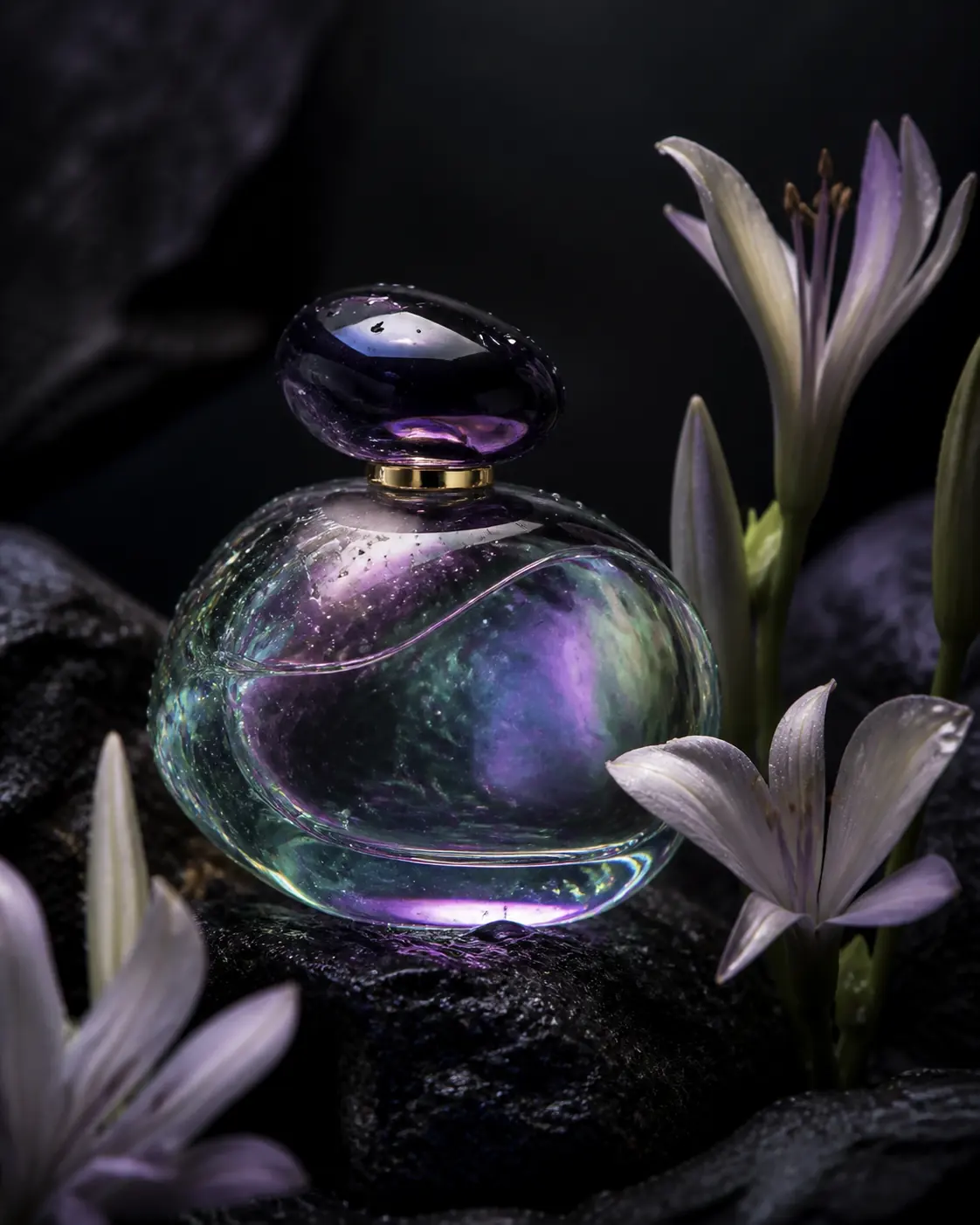
Iridescent product
Interface preview
Describe an idea and prepare a high-fidelity image with controlled composition, light, typography, and style.
Interface preview only. No files are uploaded and no credits are used.
IMAGEInterface preview
 IMAGE
IMAGEInterface preview
 IMAGE
IMAGEInterface preview
 IMAGE
IMAGEInterface preview
Create grounded, expressive images across styles with complex instruction following and typography that belongs in the scene.
FLUX 3 Image is the image component of Black Forest Labs’ multimodal model. BFL says it handles complex prompts, varied styles and text in multiple languages; the image product is being released separately from video.
Image capability and rollout notes are attributed to Black Forest Labs. Composition guidance reflects practical art-direction workflows; gallery visuals are interface illustrations unless a source explicitly states otherwise.
Build a scene from subject, action, environment, composition, lighting, materials, and style.
Use a source image to guide identity, composition, color, product detail, or the broader visual language.
Place concise quoted copy into signs, packaging, editorial layouts, interfaces, and environmental graphics.
Keep successful parts of a generation and refine one variable—light, lens, material, framing, or copy—at a time.
COMMON USESDevelop campaign directions, product concepts, packaging studies, and consistent visual systems.
Create portraits, covers, posters, social assets, and narrative illustrations across formats.
Explore environments, characters, materials, architecture, and art direction before production.
Begin with text for freedom or add a reference when identity, material, palette or composition needs clearer direction.
Assign each reference a clear purpose, such as identity, surface finish or composition, instead of asking one image to solve every part of the brief.
Inspect anatomy, geometry, reflections, typography and usage rights at both presentation size and close zoom before export.
Decide whether the output is a product concept, editorial frame, campaign direction, character study or typography layout. Set subject, composition and placement before adding stylistic language.
Order the brief as: subject → intent → composition → viewpoint → environment → lighting → materials → palette → medium. Put required copy in quotes and name its location.
Use one image for face or product identity, a second for surface finish and palette, a third for composition. Label what transfers and what is free to change.
Check anatomy, edges, reflections, logos, small copy and materials at display size and close zoom. Verify typography character by character. Compare outputs from the same brief.
When a still is close, keep the working composition and change only one thing—viewpoint, light direction, material or palette. Save prompt versions, references and ratio for reproducibility.
FLUX 3 Image is the image-generation and editing part of Black Forest Labs’ multimodal FLUX 3 system. Published capabilities include image synthesis, image editing, complex instruction following, varied visual styles, and text rendering.
Choose Text to Image for a new concept, Image to Image when an existing visual must be transformed, or Reference Images when identity, composition, material, palette, or style needs visual guidance. Then write the prompt around the selected input.
The model combines the written prompt with any supplied visual context to generate or edit a still image. Clear instructions define the subject and intended change, while composition, lighting, material, palette, typography, and references provide visual direction.
Start with the subject and purpose, then add environment, composition, viewpoint, lighting, materials, palette, medium, and required text. Keep successful wording and change one major variable at a time when refining the result.
Black Forest Labs lists image editing as a FLUX 3 Image capability. For a controlled edit, identify what must remain stable—such as identity, product geometry, pose, or layout—and describe only the changes the output should introduce.
Black Forest Labs highlights text rendering as a FLUX 3 Image capability. Put concise required copy in quotation marks, state where it should appear, and verify important names, prices, packaging, and legal text character by character before publishing.
FLUX 3 accepts image references, which can guide identity and other visual properties. Assign each reference a specific role and review every output for facial, clothing, product, and structural drift; references improve direction but do not guarantee perfect consistency.
Use the prompt guide to prepare composition, references and typography while image generation remains in staged rollout.
Read the image guide →